Let’s be honest: most of us have been there.
A sticky note on the monitor with “Password123.”
The same password reused across email, banking, and social media.
Or worse—“Forgot your password?” clicked more times than you’d like to admit.
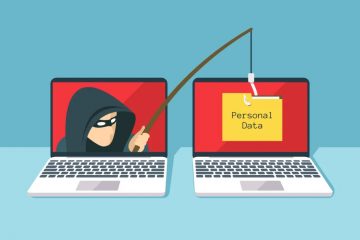
In 2026, with phishing attacks, data breaches, and AI-powered password crackers on the rise, weak or reused passwords are one of the biggest risks to your digital life. The good news? There’s a simple, powerful solution that’s easier than you think: a password manager.
This guide will show you why you need one, how it works, and how to get started—safely and confidently.
Why Your Current System Isn’t Working
Think about your passwords right now:
- Do you use the same one (or slight variations) for multiple sites?
- Is it based on your pet’s name, birth year, or “qwerty”?
- Would it take less than a second for a hacker to guess it?
If yes to any of these, you’re vulnerable. Here’s why:
- Data breaches are everywhere: In 2025 alone, over 3 billion stolen credentials were leaked online. If you reuse passwords, one breach = access to all your accounts.
- Hackers use automation: Tools can test millions of password combinations per second. “Password123” won’t last a millisecond.
- Humans aren’t designed to remember 150+ unique passwords (the average person has that many accounts).
Trying to manage this manually is not just hard—it’s unsafe.
What Is a Password Manager?
A password manager is a secure digital vault that:
- Generates strong, unique passwords for every account
- Stores them in an encrypted database
- Auto-fills them when you log in—on your phone, tablet, or computer
You only need to remember one master password—the key to your vault.
🔒 Security note: Reputable password managers use zero-knowledge encryption. That means not even the company can see your passwords. Only you hold the key.
Top Benefits (Beyond Just Security)
✅ No more forgotten passwords – Auto-fill works everywhere.
✅ Faster logins – One click instead of typing long, complex passwords.
✅ Breach alerts – Many warn you if a saved password appears in a data leak.
✅ Secure sharing – Safely share a Wi-Fi password or Netflix login without texting it.
✅ Digital legacy – Some let you grant emergency access to a trusted person.
It’s not just safer—it’s more convenient.
How to Choose a Trusted Password Manager
Not all password managers are equal. Look for these features:
| Feature | Why It Matters |
|---|---|
| End-to-end encryption | Your data is encrypted on your device—not on company servers |
| Open-source code | Independent experts can audit it for security flaws |
| Two-factor authentication (2FA) | Extra layer of protection for your vault |
| Cross-device sync | Works on iPhone, Android, Windows, Mac, and browsers |
| Breach monitoring | Alerts you if your info shows up in a leak |
Top Trusted Options in 2026
- Bitwarden (Free & paid): Open-source, affordable ($10/year), highly secure. Great for beginners.
- 1Password ($36/year): Beautiful interface, excellent family plans, travel mode.
- Keeper ($35/year): Strong security, built-in dark web monitoring.
- Apple iCloud Keychain (Free for Apple users): Built-in, simple, but limited to Apple ecosystem.
💡 Avoid: Unknown free apps with no transparency—they may be harvesting your data.
Getting Started: A 5-Minute Setup Guide
Step 1: Pick a Manager & Install It
Download the app from the official website or app store (never third-party links).
Step 2: Create a Strong Master Password
This is the only password you’ll need to remember. Make it:
- At least 12 characters long
- A mix of letters, numbers, and symbols
- Something memorable to you (e.g.,
PurpleTiger$RunsFast!2026)
🚫 Never reuse this password anywhere else.
Step 3: Enable Two-Factor Authentication (2FA)
Add an extra lock using an authenticator app (like Authy or Google Authenticator) or a hardware key (YubiKey).
Step 4: Import or Save Your First Passwords
- Most managers can import from browsers (Chrome, Safari).
- Or start fresh: next time you log in to a site, let the password manager save or replace your old password with a new, strong one.
Step 5: Use It Everywhere
Install browser extensions and mobile apps. Turn on auto-fill in your device settings.
🔄 Pro tip: Replace your most important passwords first—email, banking, social media.
Common Concerns—Answered
“What if I forget my master password?”
Most managers offer emergency access or recovery options—but choose carefully. True zero-knowledge services cannot reset your password. That’s by design (for security).
“Is it safe to store all my passwords in one place?”
Yes—because it’s like putting all your valuables in a bank vault instead of under different doormats. The vault is far more secure than your current system.
“What if the company gets hacked?”
Even if their servers are breached, your data is encrypted with your master password. Without it, hackers see only gibberish.
Final Thought: Your Digital Life Deserves Better
Using weak or repeated passwords is like using the same key for your house, car, and safe—and leaving it under the mat. A password manager gives you a unique, unbreakable key for every lock… and keeps them all in a vault only you can open.
In 2026, it’s not a luxury. It’s basic digital hygiene—as essential as locking your front door.
So take 10 minutes today. Set up a password manager. And give yourself the gift of security, simplicity, and peace of mind.
Your future self will thank you.
0 Comments