You’re trying to load a website, but it’s painfully slow—or not loading at all. Is the problem your Wi-Fi? Your internet provider? Or something far away on the internet?
This is where traceroute (sometimes spelled tracert on Windows) becomes your digital detective. It’s a powerful, built-in network tool that maps the exact path your data takes from your device to any server on the internet—and shows you where delays or failures occur.
In this guide, we’ll explain what traceroute is, how it works, and when to use it to solve real-world connectivity issues.
What Is Traceroute?
Traceroute is a command-line utility that traces the route packets take from your computer to a destination (like google.com or an IP address). It displays:
- Each “hop” (router or network node) along the way
- The time (in milliseconds) it takes to reach each hop
- Where the connection succeeds—or fails
Think of it as a GPS for your internet traffic, showing every stop between you and your destination.
How Does Traceroute Work?
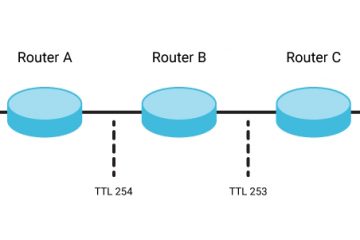
Traceroute exploits the TTL (Time to Live) field in IP packets:
- Your computer sends a packet with TTL = 1.
- The first router receives it, decrements TTL to 0, and sends back an “ICMP Time Exceeded” message—revealing its identity.
- Traceroute then sends a packet with TTL = 2, which reaches the second router before expiring.
- This repeats, increasing TTL by 1 each time, until the packet reaches the final destination.
The result: a complete list of every network hop between you and the target.
📡 Note: On Windows, the command is
tracert; on macOS/Linux, it’straceroute.
When Should You Use Traceroute?
✅ 1. Diagnosing Slow Internet
If a website loads slowly, traceroute can show where the delay happens:
- High latency at hop #3? Likely your ISP’s network.
- Delay at the last hop? The destination server is overloaded.
✅ 2. Identifying Connection Failures
If you can’t reach a site, traceroute shows exactly where the path breaks:
- Stops at hop #5? Problem with your ISP or a mid-tier network.
- Reaches the final server but times out? The server may be down or blocking requests.
✅ 3. Comparing Network Paths
Is your cloud app faster from home or the office? Run traceroute from both locations to compare routes and latency.
✅ 4. Detecting Routing Issues
Sometimes data takes a bizarrely long path (e.g., through another country). Traceroute reveals inefficient routing that could affect performance.
How to Run Traceroute
On Windows:
- Open Command Prompt (press
Win + R, typecmd) - Type: tracert google.com
- Press Enter and wait for results.
On macOS:
- Open Terminal (Applications > Utilities)
- Type: traceroute google.com
- Press Return.
On Linux:
Same as macOS, but some distros require installing traceroute first:
sudo apt install traceroute # Debian/Ubuntu💡 Tip: Use an IP address (e.g.,
8.8.8.8) if DNS is part of the problem.
Reading the Results
A typical traceroute output looks like this:
1  192.168.1.1        2 ms    1 ms    1 ms
2  10.10.0.1          8 ms    9 ms    7 ms
3  72.14.215.85       15 ms   16 ms   14 ms
4  216.239.48.121     22 ms   *       23 ms
5  142.250.185.206    25 ms   24 ms   26 ms
- Column 1: Hop number
- Column 2: Router IP or hostname
- Columns 3–5: Round-trip times (ms) for three test packets
🔍 What to Look For:
- Asterisks (
*): Packet loss or timeout (could indicate a firewall or congestion) - Sudden latency jump: Bottleneck at that hop
- Repeated timeouts after a certain hop: Failure beyond that point
⚠️ Note: Some networks block ICMP (used by traceroute), causing false timeouts. Try
tcptracerouteormtrfor more reliable results.
Advanced Alternatives
mtr(My Traceroute): Combines ping and traceroute for real-time stats (Linux/macOS).pathping(Windows): Provides detailed packet loss statistics per hop.- Online tools: Websites like PingPlotter or VisualRoute offer graphical traceroute maps.
Limitations to Know
- Firewalls may block responses, making hops appear failed when they’re not.
- Load-balanced networks can show inconsistent paths across runs.
- Doesn’t test application-layer issues (e.g., a working server that returns HTTP errors).
Final Thought: Your Network’s X-Ray Vision
Traceroute won’t fix your internet—but it will tell you who to call. If the problem is within your home network, you can troubleshoot it yourself. If it’s at hop #7 on your ISP’s backbone, you’ve got evidence to demand support.
So next time your connection stumbles, don’t guess.
Open Terminal, run traceroute, and follow the path.
Because in networking, the truth is always in the hops.


0 Comments