You press the power button, and a few seconds later, your desktop appears. It feels instant—but behind that simplicity is a carefully choreographed sequence of hardware checks, firmware instructions, and software loading. This process, called booting, is essential to every computer’s operation.
Understanding how it works helps you troubleshoot startup issues, optimize performance, and appreciate the engineering that makes modern computing possible.
Let’s walk through what really happens between “off” and “ready.”
Step 1: Power-On Self-Test (POST)
When you press the power button, electricity flows to the motherboard. The BIOS (Basic Input/Output System) or modern UEFI (Unified Extensible Firmware Interface) firmware stored on a chip springs to life.
Its first job: POST (Power-On Self-Test).
This diagnostic check verifies critical hardware:
- CPU functionality
- RAM integrity
- GPU detection
- Keyboard/mouse presence
- Bootable storage devices
🔊 Beep codes: If something fails, the motherboard emits beep patterns (e.g., 1 long + 2 short = GPU error).
If POST passes, the system proceeds. If not, it halts—often with an error message or blank screen.
Step 2: Firmware Initialization (BIOS/UEFI)
After POST, the firmware:
- Initializes hardware components (disks, USB controllers, network cards)
- Applies settings from its configuration (stored in CMOS memory, powered by a small battery)
- Checks the boot order—a list of devices to try for startup (e.g., SSD > USB > Network)
💡 UEFI vs. BIOS:
- BIOS (older): Text-based, limited to 2TB drives, slower
- UEFI (modern): Graphical interface, supports large drives, faster boot, secure boot capability
Most computers made after 2015 use UEFI.
Step 3: Loading the Bootloader
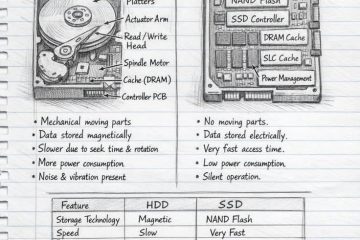
The firmware looks for a bootable device (usually your SSD or hard drive) and reads the Master Boot Record (MBR) or GUID Partition Table (GPT).
From there, it loads the bootloader—a tiny program that knows how to start the operating system.
- Windows: Uses Windows Boot Manager
- Linux: Often uses GRUB or systemd-boot
- macOS: Uses Apple Boot ROM → iBoot
The bootloader may present a menu (e.g., dual-boot Linux/Windows) or load directly into the OS.
Step 4: Kernel Initialization
The bootloader loads the OS kernel—the core of the operating system—into RAM.
During this phase:
- The kernel detects and configures all hardware (using drivers)
- Mounts the root file system
- Starts essential system processes
On Windows, this is when you see the spinning dots. On Linux, you might see text scrolling (unless hidden). On macOS, the Apple logo appears.
Step 5: User-Space Startup & Login
Once the kernel is running, it launches user-space services:
- Windows: Starts
winlogon.exe, loads user profile, runs startup apps - macOS: Launches
launchd, loads user session, starts login window - Linux: Runs init system (e.g., systemd), starts display manager (e.g., GDM)
Finally, the login screen appears. After you enter your credentials, your desktop environment loads—complete with wallpaper, icons, and background apps.
What Can Go Wrong? Common Boot Failures
| Symptom | Likely Cause |
|---|---|
| Blank screen after power-on | Failed POST (RAM/GPU issue) |
| “No boot device found” | Drive failure, loose cable, or wrong boot order |
| Stuck on logo/spinning wheel | Corrupted OS, driver conflict, or failing SSD |
| Boot loop (restarting repeatedly) | Faulty update, malware, or hardware instability |
| Blue/Black Screen of Death | Critical system file missing or driver crash |
How to Troubleshoot Boot Issues
- Listen for beep codes during POST.
- Enter BIOS/UEFI (press F2, Del, or Esc during startup) to check boot order.
- Try Safe Mode (Windows) or Recovery Mode (macOS/Linux) to repair the OS.
- Test with a live USB to rule out hardware failure.
- Reset BIOS settings to default if overclocking or misconfiguration is suspected.
Modern Enhancements: Fast Startup & Secure Boot
- Fast Startup (Windows): Hybrid shutdown that saves kernel state—speeds up boot but can cause issues with dual-boot systems.
- Secure Boot (UEFI): Ensures only signed, trusted bootloaders run—blocks malware from hijacking startup.
⚠️ Note: Disabling Secure Boot is sometimes needed to install Linux—but reduces security.
Final Thought: A Symphony of Hardware and Software
Booting seems simple, but it’s one of computing’s most delicate dances—where firmware, hardware, and software must align perfectly in under 30 seconds.
Next time your computer starts up, remember:
That quiet hum isn’t just power.
It’s decades of engineering, working in harmony to bring your digital world to life.
0 Comments