When buying a new computer or upgrading an old one, you’ll face a critical choice: what type of storage should you use? The three main options—HDD, SSD, and NVMe—vary dramatically in speed, price, durability, and use case.
Understanding the differences helps you avoid overspending on unnecessary performance—or underbuying and regretting it later.
Let’s break down each technology, how they work, and which one is right for you.
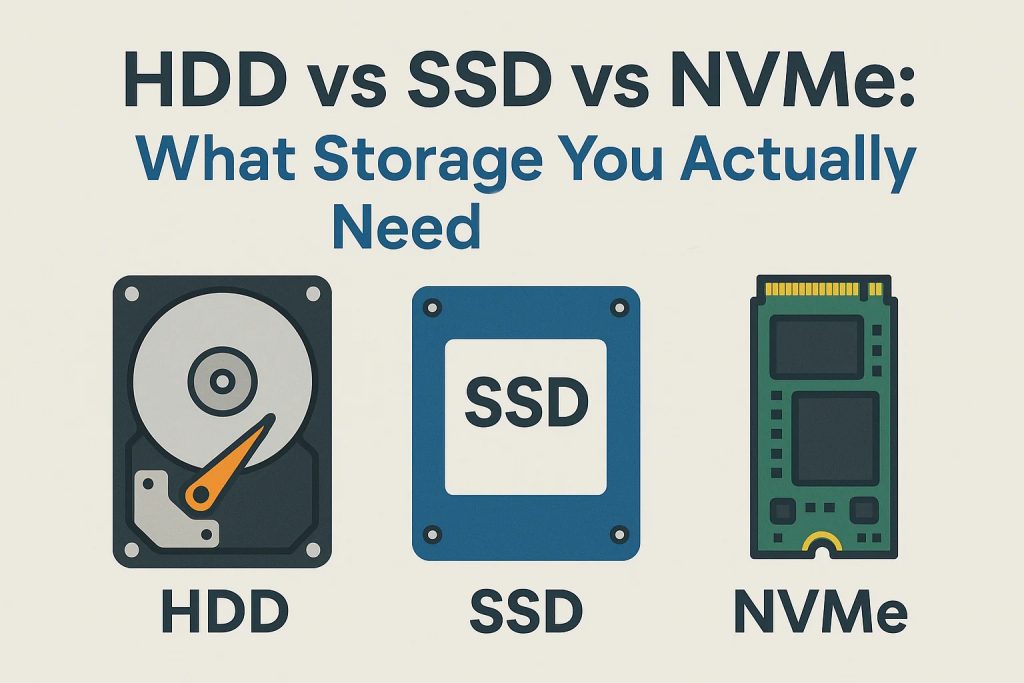
1. HDD (Hard Disk Drive): The Legacy Workhorse
How It Works
- Uses spinning magnetic platters and a moving read/write head (like a record player).
- Data is stored magnetically on rotating disks.
Pros
- ✅ Low cost per gigabyte (~$0.02/GB)
- ✅ High capacities (up to 22TB for consumers)
- ✅ Long-term archival (if powered occasionally)
Cons
- ❌ Slow: Boot times of 30–60 seconds; file transfers crawl
- ❌ Fragile: Sensitive to drops, vibration, and wear
- ❌ Noisy and power-hungry: Spinning disks generate heat and noise
Best For
- Bulk storage (media libraries, backups)
- Budget desktops where speed isn’t critical
- Surveillance systems (continuous write endurance)
💾 Real-world speed: ~100–150 MB/s sequential read/write
2. SATA SSD (Solid State Drive): The Balanced Upgrade
How It Works
- Uses NAND flash memory (no moving parts).
- Connects via SATA interface—the same as older HDDs.
Pros
- ✅ Much faster than HDD: Boots in 10–15 seconds
- ✅ Silent, cool, and shock-resistant
- ✅ Widely compatible: Works in any laptop/desktop with a 2.5″ drive bay
Cons
- ❌ Limited by SATA III bandwidth (max ~550 MB/s)
- ❌ More expensive per GB than HDD (~$0.06/GB)
Best For
- Everyday laptops and desktops
- Gamers on a budget
- Upgrading older computers (plug-and-play replacement for HDD)
⚡ Real-world speed: ~500–550 MB/s — a 4–5x improvement over HDD
3. NVMe SSD (Non-Volatile Memory Express): The Speed King
How It Works
- Also uses flash memory—but connects directly to the PCIe bus (like a graphics card).
- Bypasses SATA bottleneck for vastly higher speeds.
Pros
- ✅ Blazing fast: 3–7x faster than SATA SSD
- ✅ Lower latency: Ideal for multitasking and large files
- ✅ Compact form factor (M.2 stick, no cables)
Cons
- ❌ Higher cost per GB (~$0.08–$0.12/GB)
- ❌ Requires compatible motherboard (most post-2018 systems support it)
Best For
- Content creators (4K video editing, large photo libraries)
- High-end gaming (faster load times)
- Workstations and professional laptops
- Modern ultrabooks (where space is limited)
🚀 Real-world speed:
- PCIe 3.0 NVMe: ~3,500 MB/s
- PCIe 4.0 NVMe: ~7,000 MB/s
- PCIe 5.0 NVMe: ~12,000+ MB/s (2026 high-end)
Key Differences at a Glance
| Feature | HDD | SATA SSD | NVMe SSD |
|---|---|---|---|
| Speed (Read) | 100–150 MB/s | 500–550 MB/s | 3,500–12,000+ MB/s |
| Durability | Low (moving parts) | High (no moving parts) | High |
| Noise | Yes (spinning) | Silent | Silent |
| Power Use | High | Low | Very Low |
| Price per TB | ~$20 | ~$60 | ~$80–$120 |
| Best Use Case | Bulk storage | General computing | Performance-critical tasks |
Which Should You Choose?
✅ Choose HDD if:
- You need massive, cheap storage (e.g., 8TB for movies/backups)
- You’re on a tight budget and don’t mind slower performance
✅ Choose SATA SSD if:
- You want a big speed boost without breaking the bank
- You’re upgrading an older laptop or desktop
- You don’t do heavy video editing or large data workloads
✅ Choose NVMe SSD if:
- You work with large files (video, 3D models, databases)
- You want the fastest possible boot and load times
- You have a modern system (2018+) that supports M.2 NVMe
💡 Pro Tip: Many users use a hybrid setup:
- NVMe SSD (500GB–1TB) for OS and apps
- HDD or SATA SSD (2–4TB) for files, photos, and games
The Future: Is HDD Dead?
Not yet. While NVMe dominates new laptops, HDDs remain essential for:
- Cloud data centers (cost-effective bulk storage)
- Security DVRs (high endurance for constant writing)
- Archival cold storage (when powered properly)
But for your primary drive? SSD (SATA or NVMe) is now the standard—and for good reason.
Final Thought: Speed Changes Everything
Upgrading from HDD to SSD is the single biggest performance boost you can make to an old computer. And moving to NVMe takes it further—if your workflow demands it.
So ask yourself:
Do I need capacity, balance, or speed?
The answer will lead you to the right storage—and a noticeably better computing experience.


0 Comments